When developing Spring Boot applications, one of the most common startup errors developers encounter is: Web server failed to start. Port 8080 was already in use.
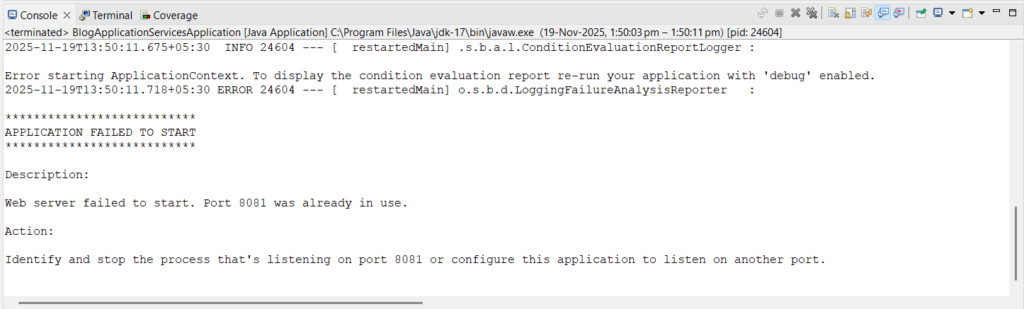
In this article, we’ll explore why this error occurs, how to identify which process is using the port, and how to resolve it. Whether you’re using Windows, macOS, or Linux, the solutions here will help you quickly get your Spring Boot application up and running again.
This message typically appears when the embedded server (Tomcat, Jetty, or Undertow) tries to start, but the configured port is already occupied by another running process. It’s a small but frustrating issue that can halt your development flow — especially when multiple applications or test servers are running simultaneously.
How to kill process running on port 8080 in Windows
Step 1: Open command prompt (CMD)
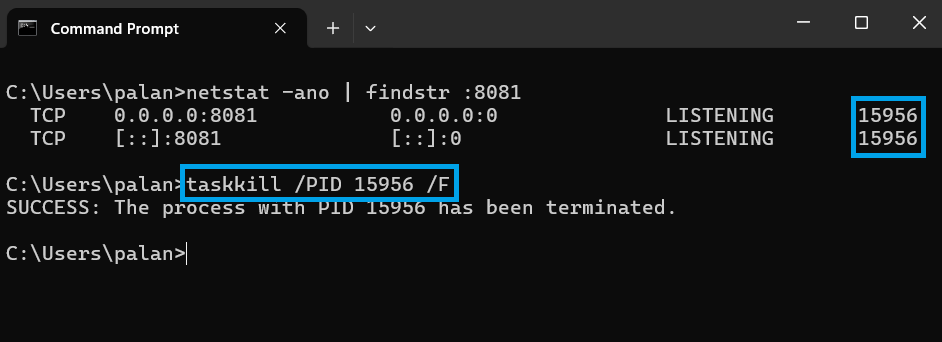
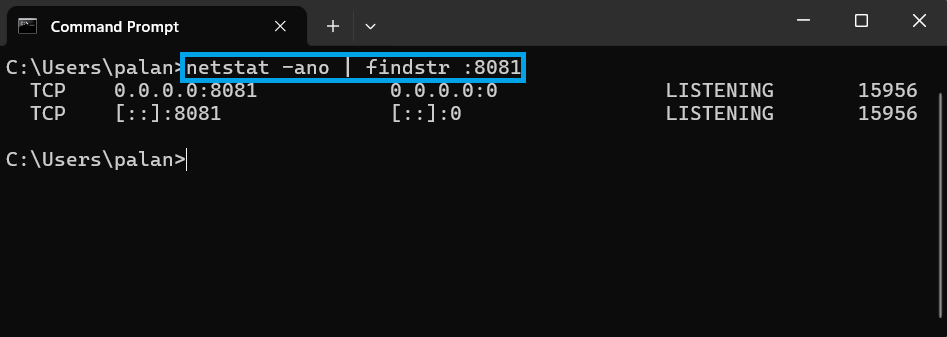
First of all, we will run command line (cmd) and will execute the following command on command prompt.
netstat -ano | findstr :<PORT>- netstat: The netstat is a utility command in command prompt that is used for viewing the network connections.
- -a: This will shows all the network connections and the listening ports.
- n: It shows IP addresses and PORT numbers.
- o: This shows the PID (process-id) for all the network connections or the listening ports.
- findstr: The findstr command as its name suggests it is used to find and display the information about the process running on the specified PORT.
- PORT: It is the port number on which we are facing the issue.
Step 2: Kill task using Taskkill in CMD
How to kill task using process id?
Now, we need to kill the task using the process id (PID) which we have found using the previous command. We will be using the following command to kill the process.
taskkill /PID <PORT> /F- taskkill: Utility command to kill the tasks.
- PID: It represents the process id.
- /F: This is a flag which will forcefully end the tasks.